
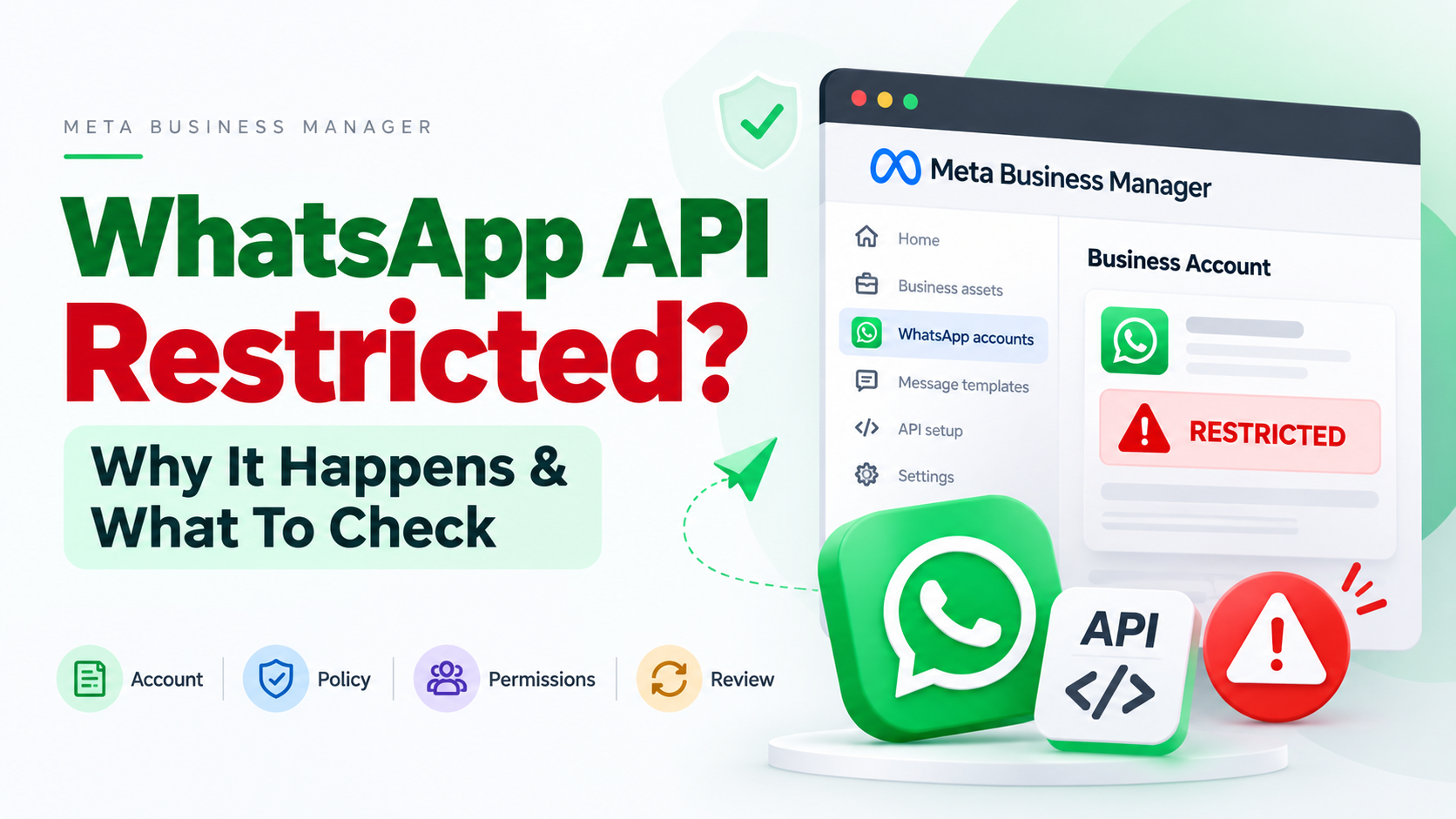
Seeing “Restricted” on your WhatsApp Business Account can be stressful, especially when WhatsApp is an important part of your customer support, sales or automation setup.
But here’s the first thing to understand:
Restricted does not always mean permanently banned.
The problem could be connected to your WhatsApp Business Account (WABA), messaging behavior, business information, permissions, user feedback or policy compliance.
So instead of immediately creating another Business Manager or adding another number, find out what Meta is actually restricting.
Why Can a WhatsApp API Account Get Restricted?
WhatsApp does not rely on only one signal when enforcing its rules.
According to WhatsApp, information from users, business account and registration information can be used to identify possible policy violations. When a user reports a business, WhatsApp can also receive information associated with the report, including the last five messages sent by the reported business.
Here are some areas worth checking.
1. Poor Messaging Quality
If customers repeatedly block or report your business, that can become a serious signal.
This commonly happens when businesses send:
- Unexpected marketing messages
- Too many promotional messages
- Irrelevant templates
- Messages to poorly sourced contact lists
- Repeated messages after users lose interest
WhatsApp requires businesses to respect opt-outs, and its current terms state that user blocks and reports may contribute to enforcement action.
Tip: Don't focus only on how many messages you can send. Focus on whether users actually expect those messages.
2. Weak or Missing User Opt-In
This is one of the areas businesses should take seriously.
For business messaging, the customer should understand that they are agreeing to receive WhatsApp communication from your business.
A phone number sitting inside your CRM does not automatically mean that person wants promotional WhatsApp messages.
Current WhatsApp Business policy requires appropriate opt-in and says businesses must respect requests to stop receiving communications.
3. Business Information Doesn't Match
Check whether your business looks consistent across your setup.
Review your:
Business name
Website
WhatsApp display name
Business email
Business Portfolio information
Privacy Policy
For example, if your Meta Business Portfolio represents one company while your website and WhatsApp profile appear to represent something completely different, that is something worth correcting.
WhatsApp's current terms require businesses to provide accurate, current and complete account information.
4. Automation Is Sending the Wrong Messages
Automation is useful.
Bad automation isn't.
If you use a CRM, chatbot, API integration or third-party WhatsApp platform, check whether it is accidentally:
- Sending duplicate messages
- Triggering campaigns multiple times
- Messaging old contacts
- Ignoring opt-outs
- Sending the wrong template
- Creating unusual API activity
If the restriction appeared shortly after changing your automation, start your investigation there.
5. WABA or API Permission Problems
Not every API failure is necessarily a policy restriction.
Sometimes the issue can be related to your setup.
Check:
Business Settings → Accounts → WhatsApp Accounts
Then review who or what has access to the WABA.
Pay attention to:
- Admin access
- Partner access
- System Users
- Connected apps
- Access tokens
- Required API permissions
This distinction matters because repeatedly appealing a policy restriction will not fix a broken API permission.
What Should You Check First?
Instead of changing everything at once, use a simple troubleshooting order.
Step 1: Check the Restriction Location
Open your Meta business tools and identify exactly which asset is affected.
Is it the:
Business Portfolio?
WhatsApp Business Account?
Phone number?
Connected app?
Another Meta asset?
Take screenshots of the warning and any error codes before changing anything.
Step 2: Check WhatsApp Manager
Review your WhatsApp Business Account.
Look for warnings related to account status, phone numbers, templates or messaging quality.
If Meta provides a specific policy violation or error, investigate that issue first instead of trying random fixes.
Step 3: Check What Changed Recently
This is one of the most useful troubleshooting questions:
“What did we change before the problem started?”
Maybe you:
- Connected a new CRM
- Added a phone number
- Changed a System User
- Generated a new access token
- Started a marketing campaign
- Imported a new contact list
- Increased messaging volume
- Changed business information
The timing can give you an important clue.
Step 4: Stop Anything Suspicious
If an automation is sending unexpected messages, pause it.
If a campaign is generating unusually high blocks or complaints, stop it.
Fixing the possible trigger before requesting a review makes much more sense than continuing the same activity while repeatedly submitting appeals.
Before Requesting a Review
Run through this quick checklist:
✓ Business details are accurate
✓ Website is live and represents the same business
✓ Privacy Policy is available
✓ WhatsApp display name is appropriate
✓ Users properly opted in
✓ Opt-out requests are respected
✓ Recent campaigns have been reviewed
✓ Message templates are being used appropriately
✓ Automation isn't sending duplicate messages
✓ System User and WABA permissions are correct
✓ Connected apps have been checked
✓ Access credentials are secure
WhatsApp's current rules allow enforcement ranging from limitations to suspension or termination depending on the circumstances.
Should You Create a New Business Manager?
Don't make this your first move.
If your actual problem is messaging behavior, business information, permissions or policy compliance, creating another Business Manager may simply move the same problem somewhere else.
More importantly, WhatsApp's current Business terms state that after account termination, a company should not create another WhatsApp business account without WhatsApp's express written permission.
So first identify the problem.
Then fix what can be fixed.
Then use the available review or appeal process when appropriate.
A Simple Way to Think About WhatsApp Restrictions
When troubleshooting, separate the problem into four areas:
Account → Is the business/WABA properly set up?
Policy → Are your messaging practices compliant?
Permissions → Does the API/app still have the correct access?
Review → If everything is fixed, is an appeal available?
This is much cleaner than randomly changing settings.
Final Thoughts
A WhatsApp API Restricted warning is something you should investigate carefully, but don't immediately assume your WABA is permanently gone.
Start by finding the exact affected asset.
Then check your account information, user opt-in, message quality, recent campaigns, automation and API permissions.
One more important point: there are discussions online about recent restrictions, but I would not publish a claim that Meta has had a confirmed global WhatsApp API restriction bug for the last 4–7 days unless Meta officially confirms it.
For reference, WhatsApp's Messaging Guidelines were updated on September 23, 2026, so businesses using WhatsApp API should also review the latest official rules rather than relying on old tutorials.