
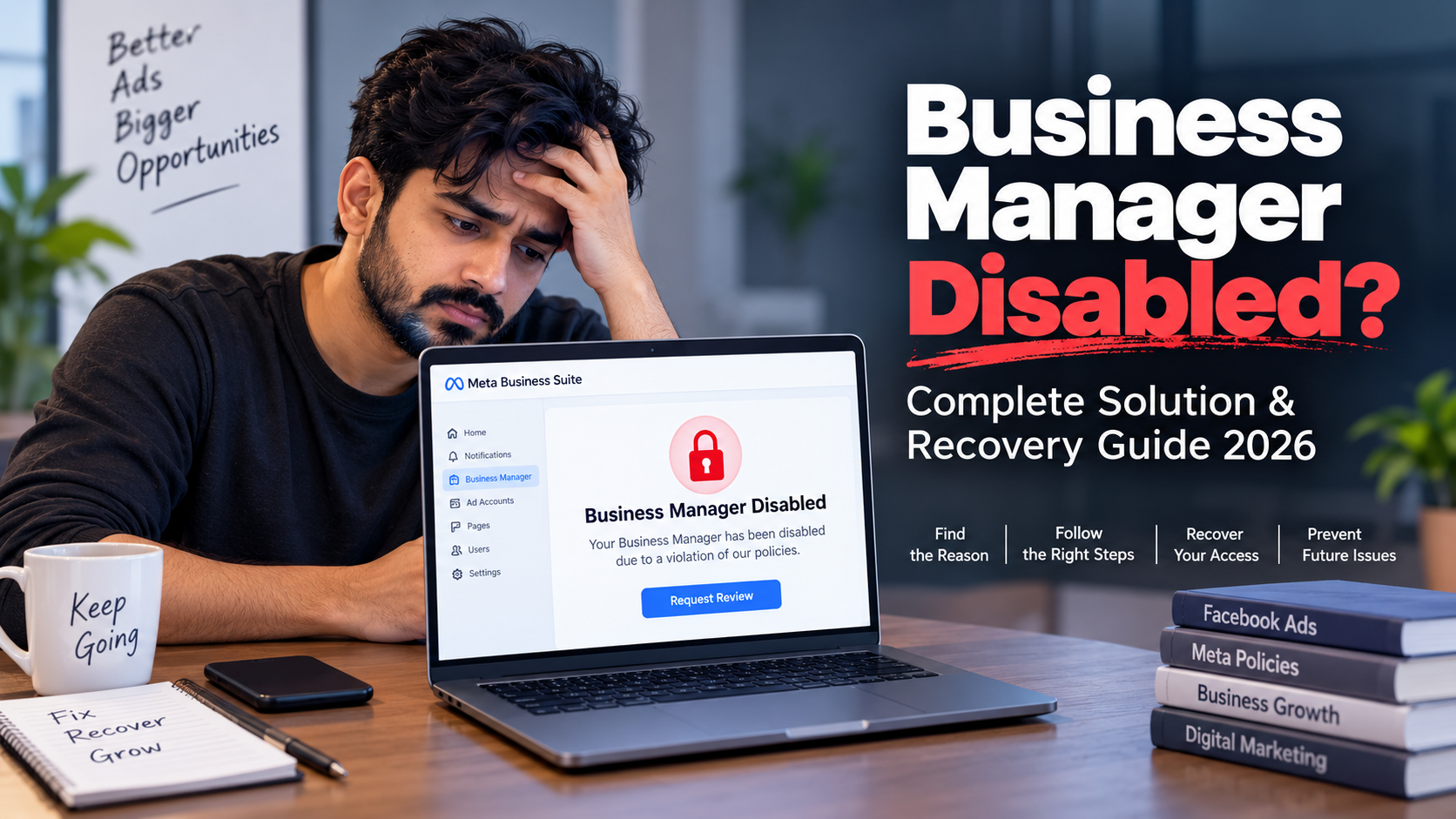
Business Manager Disabled? Complete Solution & Recovery Guide 2026
If your Facebook Business Manager has suddenly been disabled, restricted, or you can no longer create or manage ads, don’t panic. A disabled Business Manager does not always mean that your business is permanently lost.
Meta can restrict business assets or advertising access when its systems detect policy violations, unusual activity, security concerns, payment issues, or other risks. The correct solution depends on what exactly has been restricted and what reason Meta has provided.
In this guide, we’ll explain why a Business Manager can be disabled, how to identify the actual issue, what you should check before requesting a review, and how to reduce the chance of future restrictions.
What Does “Business Manager Disabled” Mean?
A Business Manager restriction means that Meta has limited some or all of your business-related advertising activities.
Depending on the situation, you may experience problems with:
• Creating new ad campaigns
• Publishing advertisements
• Using an ad account
• Adding or managing payment methods
• Managing Pages or other business assets
• Creating new business assets
• Accessing certain Meta advertising features
It is important to understand that a restricted ad account and a restricted Business Manager are not necessarily the same thing.
Sometimes only an individual ad account is affected. In other cases, Meta may restrict the wider business portfolio or other connected assets.
That is why checking the exact restriction message is the first step toward finding the right solution.
Why Is Facebook Business Manager Disabled?
There is no single reason behind every Business Manager restriction. Meta uses automated systems and reviews to identify activity that may violate its policies or create security or platform risks.
Some common causes include:
1. Advertising Policy Violations
Ads that violate Meta's advertising policies can result in restrictions.
Examples may include misleading claims, prohibited products or services, inappropriate landing pages, deceptive offers, or advertising content that does not comply with Meta's requirements.
Repeated or serious policy violations can create additional problems for an advertising account or business.
2. Suspicious or Unusual Activity
Unusual login patterns, unexpected changes to business settings, unfamiliar devices, or other security signals can trigger restrictions.
This is especially important if multiple people are accessing the same Business Manager from different locations or devices.
3. Payment Problems
Failed payments, disputed transactions, unusual payment activity, or problems with a payment method can affect advertising access.
Before submitting a review, check your billing information and make sure there are no unresolved payment issues.
4. Compromised Facebook Account
If the personal Facebook profile that manages your business is compromised, attackers may change business settings, add unknown users, create advertisements, or modify payment information.
A compromised administrator account can therefore create problems across the connected business assets.
5. Low Trust or Inconsistent Business Information
Business information should be accurate and consistent.
Problems can occur when important information such as business details, website information, contact details, domain ownership, or account information appears inconsistent or cannot be verified when required.
6. Repeated Policy Issues
Fixing one rejected advertisement does not necessarily solve a larger account-level problem.
If multiple campaigns, ads, landing pages, or business activities repeatedly violate Meta's policies, further restrictions may occur.
How to Check Why Your Business Manager Was Disabled
Before trying random recovery methods, identify exactly what Meta has restricted.
Start by checking your Meta business and advertising account notifications.
Look for messages mentioning:
• Business restriction
• Advertising restriction
• Disabled ad account
• Policy violation
• Payment issue
• Security issue
• Account review
• Request review
The exact wording matters because different restrictions can require different actions.
For example, if only an ad account is disabled, creating a completely new Business Manager may not solve the underlying problem.
Step-by-Step Business Manager Disabled Solution
Step 1: Check Your Account Status
First, review the status of your business, advertising account, Page, and personal profile.
Look for the specific reason provided by Meta.
Do not immediately create multiple new accounts or business assets before understanding the restriction.
Step 2: Review Your Recent Activity
Think about what happened before the restriction.
Check:
• Recent advertisements
• Recently added admins
• New payment methods
• New Pages
• New domains
• Login activity
• Business settings
• Changes to account information
If you find something suspicious, secure the account before requesting a review.
Step 3: Secure Your Facebook Account
Security should be a priority when dealing with an unexpected restriction.
Change your password if necessary and review active sessions and connected access.
Enable two-factor authentication where available and remove unknown users or suspicious access from your business assets.
If you believe your account has been compromised, focus on securing it before making major business changes.
Step 4: Check Your Payment Information
Review your billing section carefully.
Make sure:
• Your payment method is valid
• There are no failed payments
• Outstanding balances are resolved
• Your billing information is accurate
• You recognize recent transactions
Payment-related problems should be resolved before requesting a review.
Step 5: Review Your Ads and Landing Pages
If the restriction is related to advertising, review your recent campaigns carefully.
Check your:
• Ad copy
• Images and videos
• Headlines
• Claims
• Call-to-action
• Landing pages
• Website content
• Product or service information
Do not simply change a few words and resubmit the same violating content.
The complete advertising experience should comply with Meta's policies.
Step 6: Request a Review
If Meta provides a review or appeal option, use the official review process.
Keep your explanation short, factual, and professional.
Explain:
• That you reviewed the restriction
• What you found
• What corrections were made
• That you understand the advertising policies
• That you are requesting a manual review if appropriate
Avoid aggressive language, false claims, or unnecessary explanations.
Example Business Manager Review Message
Hello Meta Support Team,
My Business Manager has been restricted, and I would like to request a review of the decision.
I have reviewed my business assets, advertising activity, payment information, and recent account activity. I have also taken steps to address any potential issues that may have caused the restriction.
I understand the importance of following Meta's advertising and business policies and will continue to maintain compliant advertising practices.
Please review my Business Manager and let me know if any additional information or verification is required.
Thank you for your time and assistance.
What NOT to Do After a Business Manager Restriction
Many people make the situation worse by taking random actions after their Business Manager is disabled.
Avoid:
• Creating multiple new Business Managers immediately
• Creating several replacement ad accounts
• Using fake business information
• Using someone else's identity or payment method
• Repeatedly submitting the same appeal
• Uploading misleading verification documents
• Trying to bypass an existing restriction
• Giving access to unknown people
The goal should be to resolve the original issue, not to bypass Meta's enforcement systems.
Can a Disabled Business Manager Be Recovered?
Recovery depends on the type and reason for the restriction.
Some restrictions may be resolved after correcting a policy, security, payment, or verification issue and completing the available review process.
However, there is no universal method that guarantees restoration.
If Meta determines that the business or advertising activity violates its policies, the available options may be limited.
This is why understanding the exact restriction is much more important than following random “BM recovery tricks” found online.
How to Prevent Future Business Manager Restrictions
Prevention is easier than repeatedly dealing with disabled advertising assets.
Follow these best practices:
1. Keep your business information accurate.
2. Use legitimate payment methods.
3. Give access only to trusted team members.
4. Enable strong account security.
5. Review Meta advertising policies regularly.
6. Check landing pages before launching campaigns.
7. Avoid misleading claims and unrealistic promises.
8. Monitor account and billing notifications.
9. Remove unknown users and unnecessary access.
10. Keep your advertising activity consistent with your actual business.
Business Manager Disabled: Final Thoughts
A disabled Facebook Business Manager can be stressful, especially when you depend on Meta Ads for your business.
The best approach is not to panic or create multiple replacement accounts. First identify what Meta has restricted, review the reason, secure your account, check payment and advertising activity, correct any genuine problems, and then use the official review process when it is available.
There is no legitimate shortcut that can guarantee Business Manager recovery. A clean account structure, accurate business information, secure access, compliant advertising, and responsible account management are the strongest foundations for long-term Meta advertising access.
Frequently Asked Questions
Can I recover a disabled Facebook Business Manager?
Recovery depends on the reason for the restriction and the review options provided by Meta. If a review option is available, provide accurate information and address any identified issues before submitting the request.
Why did Meta disable my Business Manager?
Possible reasons include advertising policy issues, suspicious activity, security concerns, payment problems, compromised accounts, or other violations of Meta's business and advertising requirements.
Should I create a new Business Manager after getting disabled?
Creating multiple replacement Business Managers is not a reliable solution and can create additional complications. It is generally better to understand and address the original restriction first.
How long does Business Manager recovery take?
There is no universal recovery timeframe. The timing can depend on the type of restriction, the review process, and whether additional information or verification is required.
Can a payment issue disable advertising access?
Payment problems can affect advertising access. Review your billing information, failed payments, outstanding balances, and payment methods before requesting a review.
What is the safest way to recover a disabled Business Manager?
The safest approach is to identify the exact restriction, secure your account, correct legitimate issues, follow Meta's policies, and use the official review or support process available for your account.
Disclaimer
This article is for educational and informational purposes only. Meta's systems, policies, review processes, and available support options can change over time. No third party can guarantee that a restricted or disabled Business Manager will be restored. Always follow the latest official Meta policies and instructions shown in your account.